Free Email Deliverability Checker - Test SPF, DKIM, DMARC & Blacklists
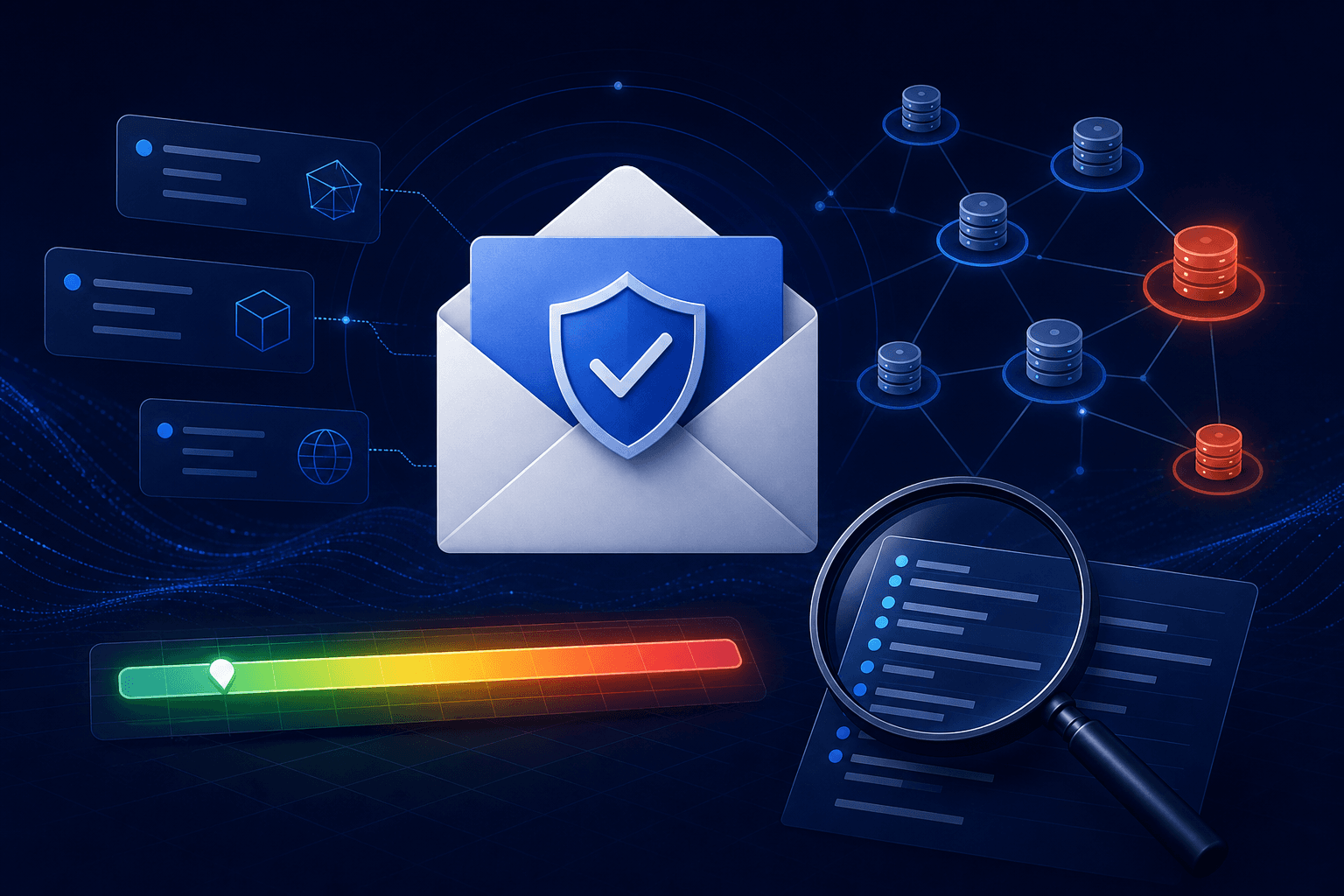
If your agency emails are landing in spam, the problem is almost never your copy. It is your domain configuration. This free tool checks your SPF, DKIM, DMARC, and MX records, scans 49 blacklists, scores your sending IP reputation, and identifies other domains sharing your IP address.
Enter your domain below to get a full deliverability report in seconds. No signup required.
Verify to continue
Quick verification before running the deliverability check.
How Email Authentication Actually Works
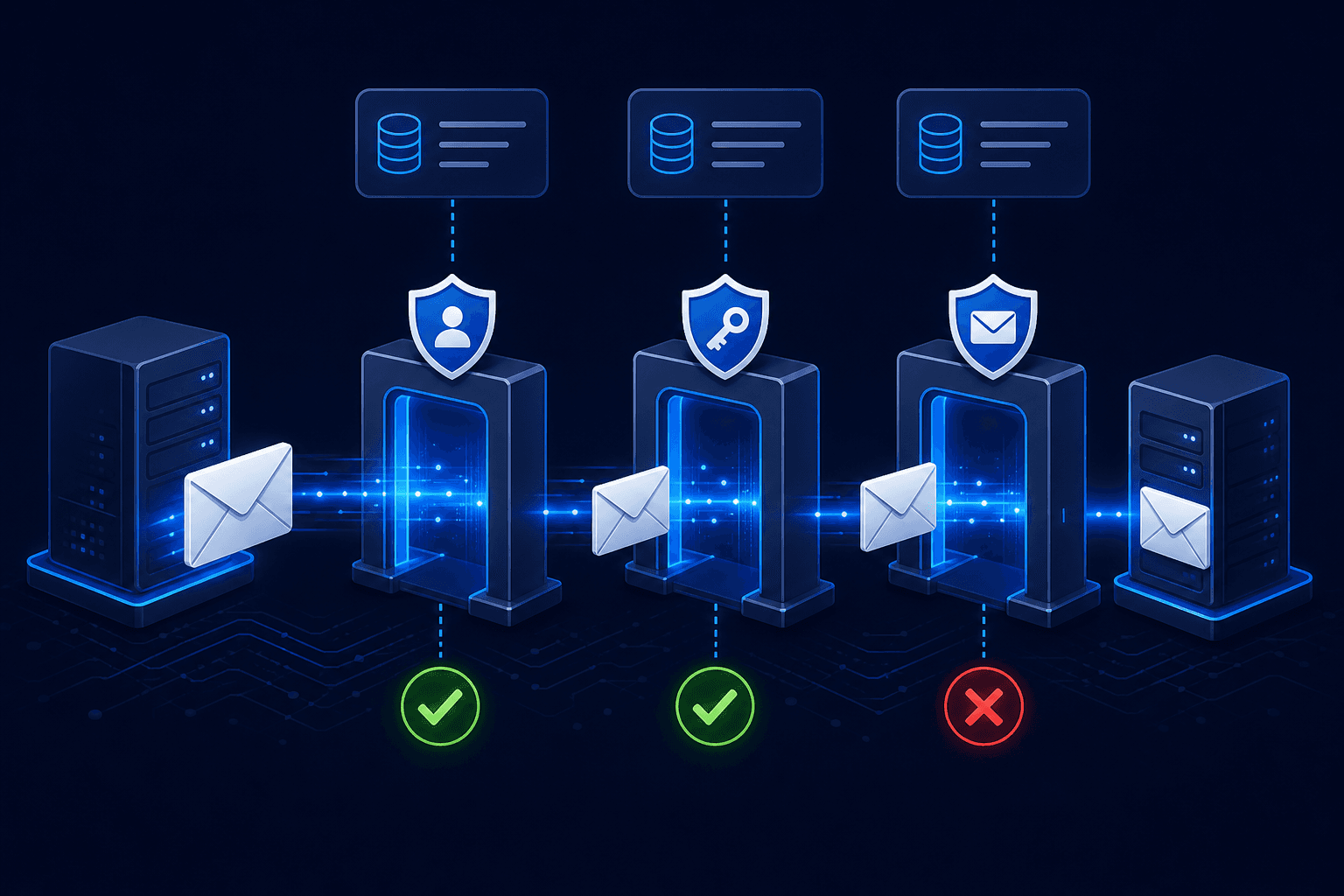
Before your email ever reaches a recipient's inbox, the receiving mail server runs a series of automated checks against your domain's DNS records. These checks happen in milliseconds, completely invisible to you, and they determine whether your message gets delivered, filtered to spam, or silently dropped.
There are three layers of authentication that modern inbox providers expect, and all three need to pass for reliable delivery. Here is what each one does and why it matters.
SPF: Who Is Allowed to Send for Your Domain
SPF (Sender Policy Framework) is the first checkpoint. It is a DNS TXT record that lists every mail server authorized to send email on behalf of your domain. When a receiving server gets a message claiming to be from your domain, it looks up your SPF record and checks whether the sending server's IP address is on the authorized list.
If the sender is not listed, the check fails. What happens next depends on your SPF "all" mechanism:
- -all (hard fail) - Unauthorized servers are explicitly rejected. This is the recommended setting.
- ~all (soft fail) - Unauthorized servers are flagged but not rejected. The message may still land in spam.
- ?all (neutral) - No opinion on unauthorized servers. Effectively useless.
- +all (pass all) - Anyone can send as your domain. This is dangerous and will get you flagged.
A common mistake is forgetting to include all your sending services. If you use Google Workspace for team email, Resend for transactional messages, and Mailchimp for newsletters, your SPF record needs to include all three. Miss one and those messages fail authentication silently.
DKIM: Proving the Message Was Not Tampered With
DKIM (DomainKeys Identified Mail) adds a cryptographic signature to every outgoing email. Your sending server signs the message with a private key, and the public key is published in your DNS records. The receiving server uses the public key to verify the signature, confirming two things: the message actually came from your domain, and it was not altered in transit.
Every email provider generates a unique DKIM key pair during setup. Google uses the selector "google", Resend uses "resend", Mailgun uses "mx", and so on. The selector tells the receiving server which public key to look up. If the key does not exist or the signature does not match, DKIM fails.
Unlike SPF, DKIM survives forwarding. If someone forwards your email, the SPF check will likely fail (because the forwarder's server is not in your SPF record), but the DKIM signature stays intact because the message content has not changed. This makes DKIM particularly important for agencies whose emails get forwarded internally at client organizations.
DMARC: The Policy That Ties It All Together
DMARC (Domain-based Message Authentication, Reporting, and Conformance) is the enforcement layer. It tells receiving servers what to do when SPF or DKIM checks fail, and it sends you reports about authentication failures so you can identify problems or spoofing attempts.
Your DMARC policy has three settings:
- p=reject - Messages that fail authentication are rejected entirely. This is the strongest setting and what you should aim for.
- p=quarantine - Failed messages are delivered to spam. A reasonable intermediate step.
- p=none - Failed messages are delivered normally. Useful for monitoring during initial setup, but provides no actual protection.
DMARC also includes a reporting address (the "rua" tag) where inbox providers send aggregate reports about authentication results. These reports are XML files that show you exactly how many messages passed, failed, or were forwarded for your domain. If you are not reading your DMARC reports, you are flying blind on deliverability.
A common agency mistake is setting up DMARC with p=noneduring initial configuration and then forgetting to upgrade it. A "none" policy is equivalent to no policy at all from a deliverability perspective. Gmail and Yahoo both started enforcing DMARC requirements in early 2024, meaning a missing or weak DMARC policy now directly impacts whether your emails reach Gmail inboxes.
MX Records: Where Your Domain Receives Mail
MX (Mail Exchange) records tell the internet which servers handle incoming email for your domain. While MX records primarily affect receiving mail, they also factor into deliverability scoring. Domains without MX records look suspicious to spam filters, because they suggest the domain was set up purely for sending and never intended to receive replies.
MX records include a priority number. Lower numbers mean higher priority. If your primary mail server (priority 10) is down, the sending server will try your backup (priority 20). Most email providers set this up automatically, but migration mistakes can leave you with stale MX records pointing to a server you no longer use.
Why Your Agency Emails Land in Spam
Most agency owners assume the content of their email is the problem. They rewrite subject lines, avoid "spammy" words, and shorten their messages. None of that matters if the technical foundation is broken.
Inbox providers like Gmail and Outlook make filtering decisions based on authentication records, sender reputation, and IP history long before they evaluate your actual message. If your domain is missing an SPF record, your DKIM signatures are not aligned, or your sending IP sits on a blacklist, the email gets flagged before the subject line is even read.
The frustrating part is that these are silent failures. You will not get an error message. Your email just quietly disappears into the spam folder, or worse, gets rejected entirely without a bounce notification. You keep sending, assuming your leads are ignoring you, when they never saw the message in the first place.
The 2024 Gmail and Yahoo Enforcement Changes
In February 2024, both Gmail and Yahoo rolled out new sender requirements that hit agency owners hard. Bulk senders (anyone sending more than 5,000 messages per day to Gmail or Yahoo recipients) now must have valid SPF and DKIM records, a published DMARC policy, easy one-click unsubscribe in marketing emails, and a spam complaint rate below 0.3%.
But here is the part most people missed: even if you send fewer than 5,000 messages, Gmail still uses authentication signals to score your messages. The threshold just determines whether you get an explicit block or a quieter deprioritization. Either way, misconfigured DNS records cost you inbox placement.
Agencies that rely on platforms with shared sending infrastructure were hit disproportionately. If the platform had not set up proper authentication for your domain (many had not, or used their own domain for the envelope sender), your emails started failing DMARC alignment checks even though the platform was "handling" deliverability for you.
Blacklists: The Silent Killer
DNS-based blackhole lists (DNSBLs) are maintained by anti-spam organizations that track IP addresses and domains associated with spam, malware, or abuse. When your sending IP gets listed on a major blacklist like Spamhaus, inbox providers consult that list in real time during delivery. A listing on Spamhaus SBL alone can drop your delivery rate by 40-80% overnight.
The problem is that you can get blacklisted without doing anything wrong. If you are on a shared sending IP and another sender on that IP triggers enough spam complaints, the entire IP gets listed. You wake up one morning with a perfect email, perfect DNS records, and zero deliverability.
This tool checks 49 separate blacklists in real time, streaming results as each check completes. A clean scan across all 49 is a strong signal. Even one or two listings on minor lists can be informational (some lists have aggressive criteria), but listings on Spamhaus, Barracuda, or SpamCop require immediate attention.
Shared vs. Dedicated IPs: What Actually Matters
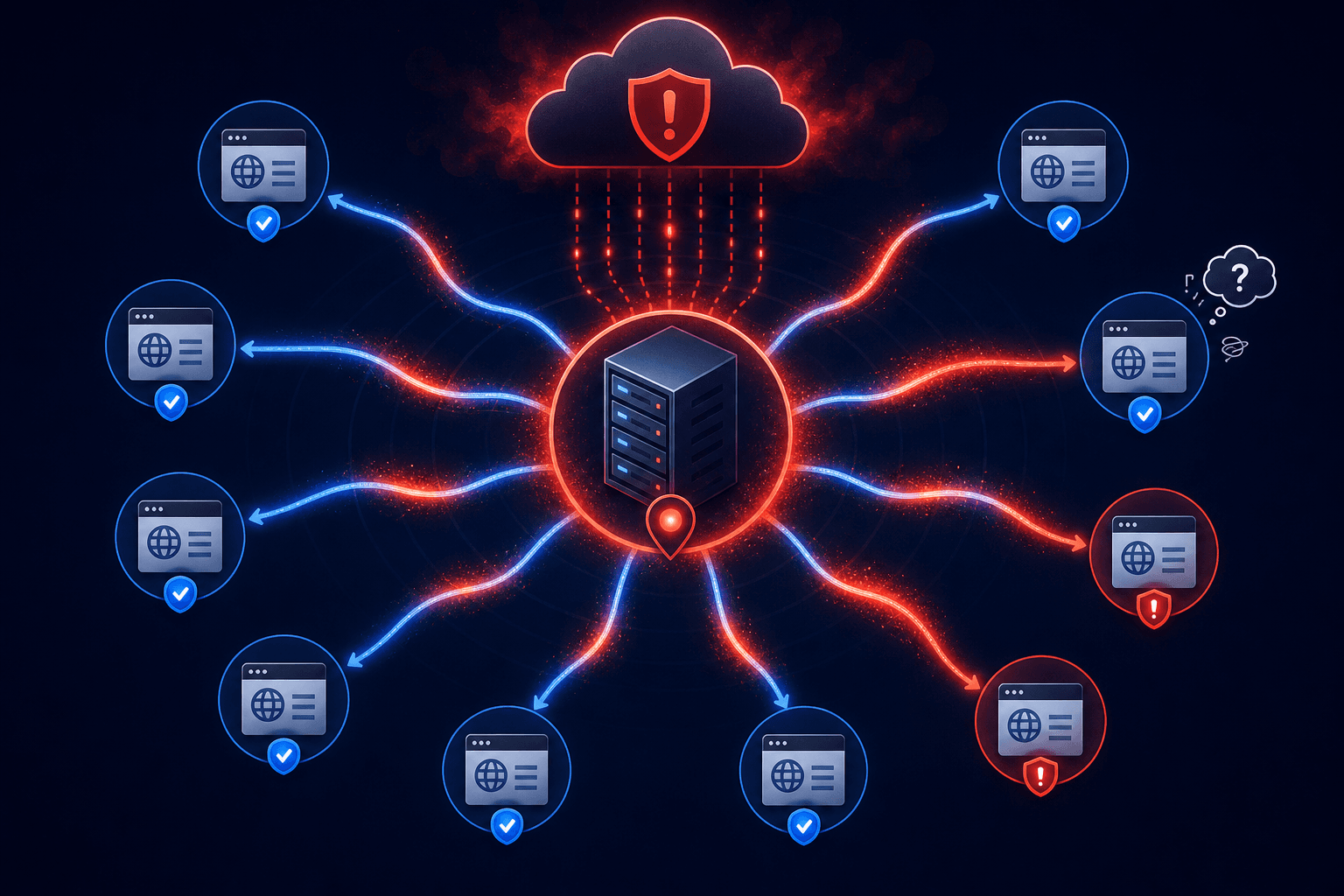
When you send email through any provider, your messages go out from an IP address. That IP can be shared with other senders or dedicated to your account. Neither option is universally better. What matters is who manages the pool and how aggressively they police it.
When Shared IPs Work Well
Premium transactional email providers like Postmark, Resend, and Amazon SES maintain curated shared IP pools. They actively monitor every sender on the pool, enforce strict sending policies, and remove bad actors quickly. If you are on one of these pools, you benefit from the collective good reputation of all the other well-behaved senders. For most agencies sending fewer than 50,000 emails per month, a well-managed shared pool delivers better inbox placement than a dedicated IP would.
The key phrase is "well-managed." A shared pool from a provider that vets its senders is a completely different experience from one that lets anyone with a credit card start blasting.
When Shared IPs Become a Problem
The risk with shared IPs is not the concept itself. It is the quality of the pool. Mass-market platforms that onboard thousands of senders with minimal vetting create pools where a single bad actor can tank reputation for everyone.
GoHighLevel is a good example. It uses Mailgun as its underlying email infrastructure, and LC Email (LeadConnector) sends through Mailgun's shared IP pools. Your emails share sending infrastructure with every other GHL agency and every sub-account they manage. The platform does not offer email throttling or sending rate controls, so when multiple agencies run campaigns simultaneously, the pool can spike to volumes that trigger spam filters.
Users have reported open rates dropping from 35-40% to single digits after migrating to GoHighLevel, with support telling them to "clean their list" when the actual problem is the shared pool. You can not clean your way out of a bad IP.
The Dedicated IP Trade-off
A dedicated IP means your reputation is yours alone, which sounds ideal. But dedicated IPs require consistent, significant sending volume (typically 50,000+ emails per month) to build and maintain a warm reputation. Without that volume, inbox providers treat your IP as "cold" and apply stricter filtering.
For agencies sending a few hundred to a few thousand emails per week, a dedicated IP can actually hurt deliverability. You end up paying more for worse results. Dedicated IPs also require a proper warm-up period of 4-6 weeks where you gradually increase sending volume. Skip the warm-up and your first campaign lands in spam.
Bottom line: for most agencies, the right answer is a reputable provider with a well-managed shared pool (Postmark, Resend, Amazon SES), not a dedicated IP. Reserve dedicated IPs for high-volume senders (50K+/month) who have the consistency to keep the IP warm.
How to Read the Shared IP Results
The shared IP neighbors section of this tool uses reverse DNS (PTR records) to discover other domains on the same IP as your mail server. Here is how to interpret what you see:
- 0 neighbors (dedicated IP) - Your reputation is entirely under your control. Make sure you have the volume to keep it warm.
- 1-10 neighbors - A small, curated pool. Typical of premium providers like Postmark. This is often the ideal setup for agencies.
- 10-50 neighbors - A moderate pool. Check the blacklist results for the IP. If the IP is clean, this is perfectly fine for most use cases.
- 50+ neighbors - A large pool. Not automatically bad, but worth investigating. If the IP is clean and the provider actively manages the pool, you are fine. If you are seeing blacklist hits, the pool quality is the likely culprit.
The number of neighbors alone does not determine risk. A clean shared pool with 200 well-vetted senders is safer than a dedicated IP you forgot to warm up. Focus on the blacklist results and IP reputation score alongside the neighbor count for the full picture.
How to Read Your Deliverability Score
The tool produces a 0-100 deliverability grade based on weighted scoring across all six check categories. Here is how the score breaks down:
- SPF (20 points) - Pass with hard fail: full marks. Soft fail: 12 points. Missing or neutral: 0.
- DKIM (20 points) - Valid signature found: full marks. No signature detected: 0.
- DMARC (15 points) - Policy set to reject or quarantine: full marks. Policy set to none: 9 points. Missing: 0.
- MX Records (5 points) - Valid MX records found: full marks. Missing: 0.
- Blacklist Status (20 points) - Clean on all lists: full marks. Each listing deducts 4 points.
- IP Reputation (20 points) - Clean reputation: full marks. Points deducted based on abuse confidence score.
A score of 80 or above means your email authentication is in good shape. Between 60 and 79 means there are issues to address but your emails are probably still being delivered with some filtering. Below 60 means you have serious configuration problems that are actively costing you inbox placement.
Common Issues and How to Fix Them
After running the check, the tool shows provider-specific recommendations for any failing records. Here are the most common issues agencies encounter:
Missing SPF record: Add a TXT record to your DNS. The exact value depends on your email provider. For Google Workspace, it is v=spf1 include:_spf.google.com -all. If you use multiple providers, combine them into a single record: v=spf1 include:_spf.google.com include:sendgrid.net -all.
DKIM not found:DKIM keys are generated by your email provider during setup. You add them as DNS records (usually CNAME or TXT). If the tool shows no DKIM, go to your email provider's dashboard and look for the "domain authentication" or "DNS records" section. They will give you the exact records to add.
DMARC set to none: Update your DMARC TXT record from p=none to p=quarantine or p=reject. Start with quarantine if you are nervous about blocking legitimate mail, then move to reject once you have confirmed your SPF and DKIM are fully configured.
Blacklist listing: Each blacklist provider has their own delisting process. Most require you to visit their website, submit a delisting request, and prove the spam issue has been resolved. The process can take 24-72 hours. If you are on a shared IP and the listing is not your fault, the only permanent fix is moving to a different sending infrastructure.
How Self-Hosted Email Fixes This

When you control your own email infrastructure, you control your sender reputation. There is no shared IP lottery. Your domain, your IP, your reputation.
With a self-hosted CRMlike Seedly, you choose your own transactional email provider, configure your own authentication records, and send from infrastructure that only your domain uses. If your deliverability score drops, you know it is your problem to fix, not someone else's spam run dragging you down.
You also get full visibility into bounce rates, complaint ratios, and blacklist status because the data flows through your own infrastructure. No more guessing why open rates cratered last Tuesday.
The tradeoff is that you are responsible for maintaining those DNS records and monitoring your reputation yourself. But tools like this deliverability checker make that straightforward. Run it after any DNS change, check it monthly as part of your ops routine, and you will catch problems before they cost you leads.
Provider Recommendations for Self-Hosted CRMs
If you are self-hosting your CRM, your transactional email provider matters. Here is a quick comparison:
- Postmark - Best deliverability, strict sender policies, excellent for transactional email. They actively remove bad senders. More expensive per message but fewer spam issues.
- Resend - Developer-friendly, built on Amazon SES infrastructure. Good deliverability, modern API, competitive pricing.
- Amazon SES - Cheapest per message at scale. More configuration required. Good for high-volume senders who want full control.
- SendGrid - Widely used, good documentation. Shared pools vary in quality. Consider a dedicated IP if you send 50K+ per month.
Whichever provider you choose, run this deliverability checker after completing your DNS setup. All four authentication records (SPF, DKIM, DMARC, MX) should show green before you send your first production email.
Email Deliverability Maintenance Schedule
Deliverability is not a set-it-and-forget-it configuration. Domain authentication records can break when you change email providers, DNS configurations can drift during migrations, and IP reputation can change as sending patterns shift. Bad data compounds the problem - if your CRM is full of dead emails, every bounce chips away at your sender reputation. A regular CRM data audit is just as important as monitoring your DNS records. Here is a practical maintenance schedule:
After any DNS change: Run this checker immediately. Verify all four records (SPF, DKIM, DMARC, MX) still pass. DNS propagation can take up to 48 hours, so check again the next day if results look stale.
Monthly:Run a full deliverability check including blacklists and shared IP neighbors. Check your DMARC reporting inbox for authentication failure patterns. Review your bounce rate and complaint rate in your email provider's dashboard.
Quarterly: Review your SPF record for services you have stopped using. Remove old includes to stay under the 10-DNS-lookup limit. Verify your DKIM keys have not expired (some providers rotate them). Confirm your DMARC policy is at quarantine or reject, not still at none.
After switching email providers: This is the most common time for deliverability to break. Your old SPF includes need to be removed and replaced. Your DKIM records need to be swapped. Your MX records may need updating. Run this tool before and after the migration to confirm nothing was missed.
Bookmark this page and come back whenever you need a quick check. The tool runs entirely in your browser with no account required. Your domain data is never stored.
Own your email infrastructure. Own your deliverability.
Seedly CRM includes dedicated sending domains, per-client email isolation, and full DNS authentication out of the box. No shared IPs. No surprise spam folder trips.